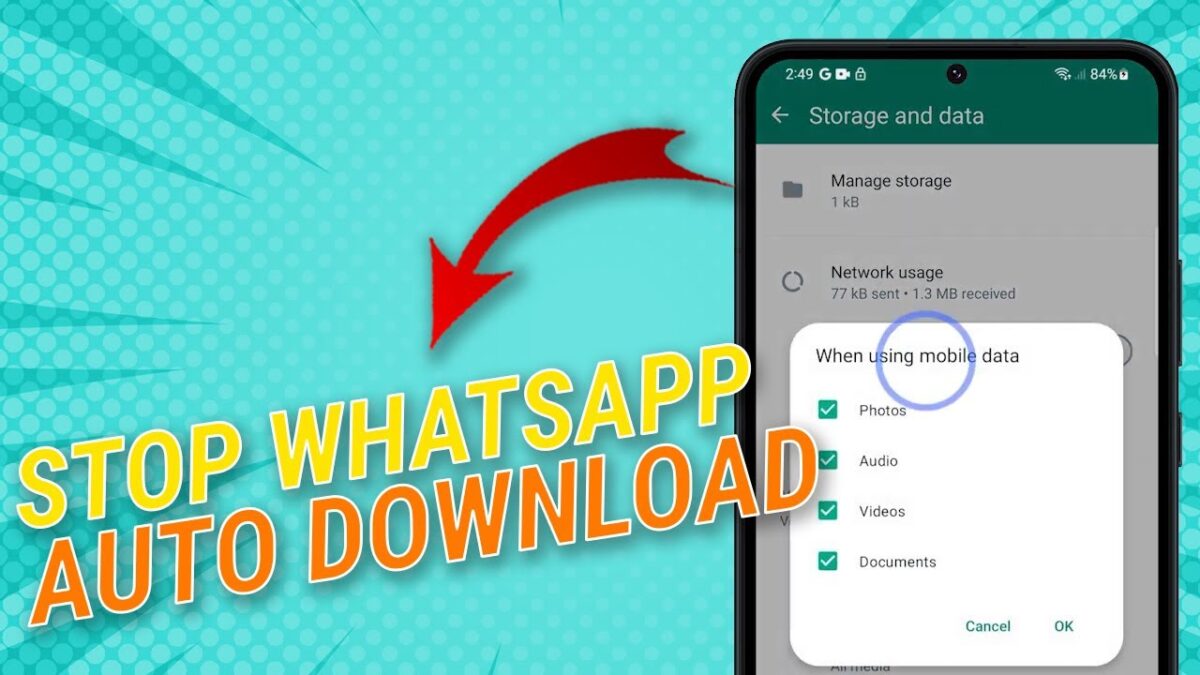
Learn how to stop WhatsApp from automatically downloading videos, images, and other media files. Disabling auto download helps you save mobile data, storage space, and gives you control over what content gets downloaded to your phone.
Stop Auto Download on Android
- Open WhatsApp.
- Tap the three dots menu in the top right corner.
- Select Settings.
- Tap Data and Storage Usage.
- Under Media Auto-Download:
- Tap When using mobile data.
- Uncheck Photos, Audio, Videos, and Documents.
- Tap OK.
- Repeat these steps for When connected on Wi-Fi and When roaming.
Stop Auto Download on Windows Phone
- Open WhatsApp.
- Tap the three dots menu.
- Go to Settings.
- Select Chat Settings.
- Turn off Auto Download for Photos and Videos.
Benefits of Disabling Auto Download
- Save mobile data usage.
- Reduce storage consumption.
- Improve WhatsApp performance.
- Control what you download.
- Avoid unwanted or spam content.
Manual Download
After disabling automatic downloads, media files will no longer download on their own. To view an image or video, simply tap the media thumbnail to download it manually whenever needed.
Conclusion
Turning off WhatsApp’s automatic download feature is an effective way to save data, free up storage, and stay in control of your downloads. Manage your media manually to keep your phone organized and efficient.


