What Is Outlook Web App?
Outlook Web App (OWA) is Microsoft’s browser-based email and personal information manager, available to Office 365 and Exchange Online users. Previously known as Exchange Web Connect and Outlook Web Access, OWA provides access to your email, calendar, contacts, and tasks—all through a web browser, without needing to install the desktop Outlook program.
OWA mirrors the familiar Outlook experience, offering essential tools such as spell check, email signatures, HTML formatting, and integrated access to files like Word documents, Excel sheets, and PDFs. It also includes Skype integration, alerts, and a unified interface consistent across Microsoft web applications.
How to Access Outlook Web App
- Open your web browser and go to the Outlook Web App URL provided by your organization or go to outlook.office.com.
- Sign in with your username and password associated with your Microsoft 365 or Exchange account.
- Once logged in, you can access email, contacts, calendar, and tasks from anywhere with an internet connection.
Can You Recall an Email in Outlook Web App?
Unfortunately, the recall feature is not available in the Outlook Web App.
The “Recall This Message” option only works in the desktop version of Microsoft Outlook when both the sender and recipient use Microsoft Exchange within the same organization.
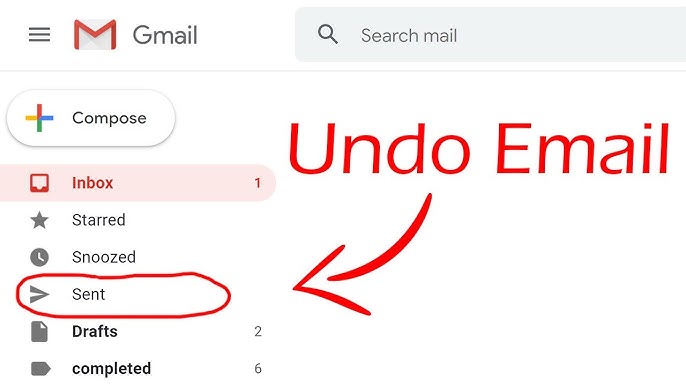
If you sent an email through the web app and wish to “unsend” it, you’ll need to open the Outlook desktop application to perform a recall (if the message qualifies).
How to Recall an Email Using the Outlook Desktop App
If you sent an email through Outlook and need to recall it, follow these steps:
- Close the Web App
Sign out of Outlook Web Access and close your browser. - Open Outlook Desktop
Launch Microsoft Outlook on your computer. - Go to Sent Items
In the left sidebar, click Sent Items under “All Mail Folders.” - Open the Message
Double-click the email you want to recall. - Recall the Message
In the top menu, click Actions → Recall This Message. - Choose an Option
- Select Delete unread copies of this message to remove it from recipients’ inboxes.
- Optionally, deselect Tell me if recall succeeds or fails for each recipient to skip notifications.
- Confirm and Close
Click OK. Outlook will display a confirmation above the message showing the recall’s status, date, and time.
Note: Message recall works only if the recipient hasn’t opened the message yet and is part of the same Exchange system.
How to Download Emails from Outlook Web App
If you’d like to save or back up emails:
- Start a new message.
- Click Edit Message in New Window.
- Select the emails you want to download.
- Drag them into the new message window.
- Use the download arrow on the attachments to save them locally—or send the message to yourself and download the attachments afterward.
How to Access the Archive Folder in Outlook Web App
To locate your archived messages:
- Open Outlook on your desktop (or web).
- In the left sidebar, find your email account and expand it.
- Click Archive to view all archived emails.
- Use the search bar above the message list to find specific archived emails or switch to the Archive folder using the drop-down beside the search field.
Quick Q&A
Q: Can I recall an email in Outlook Web App?
A: No, message recall is only available in the Outlook desktop version with Microsoft Exchange.
Q: What are the requirements for recalling a message?
A: Both sender and recipient must use Microsoft Outlook with Microsoft Exchange within the same organization.
Q: Where is the recall option located?
A: In Outlook desktop, open the Sent Items folder → Actions → Recall This Message.
Q: Can I retrieve the recall date and time?
A: Yes, Outlook will display a confirmation message with that information.
Q: Is recalling an email complicated?
A: Not at all—most confusion comes from users attempting the recall process from the web app, where the feature isn’t available.
Summary
While Outlook Web App offers nearly all the same features as the desktop version, the message recall function is an exception. To recall or unsend an email, you must use the Microsoft Outlook desktop client connected to the same Exchange network. However, Outlook Web App still allows you to manage, download, and archive messages conveniently from any browser.